Multi-select delete and copy functionality
Previously the system only supported deleting a single subroutine node. When users needed to delete multiple
nodes, they had to remove them one by one, which was time-consuming and prone to accidental deletions or errors.
Now: to improve editing efficiency and the user experience, a multi-select delete feature has been added,
allowing users to select multiple subroutine nodes and delete them at once.
Multi-select keys:
- Ctrl: non-contiguous selection
- Shift: range selection
Example:
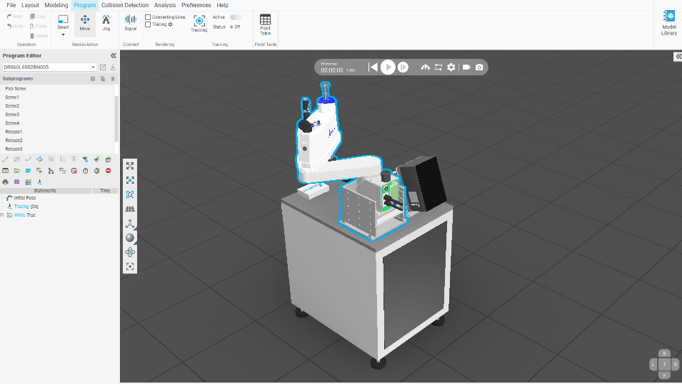
_Example_ScrewMachine-1.dtl
-
Open the Model library, import _Example_ScrewMachine-1.dtl, and go to the Program tab. Ensure there are
multiple subnodes in the path tree.
-
Use Shift for range selection: in the subroutine, click the first node (start). Hold the Shift key and
click the last node (end). The system will automatically select all nodes between the start and end.
Click the delete button in the top-right. Result: all selected nodes are deleted at once.
-
Use Ctrl for individual multi-selection: in the subroutine, hold the Ctrl key. Click multiple nodes you
wish to delete. The selected nodes will be marked simultaneously. Click the delete button in the
top-right. Result: all selected nodes are deleted at once.
-
Property panel display logic: when the user performs a multi-selection, the right-side property panel
will display the properties of the first selected node (optional). If not specified, it can be
configured to show the last selected node or to show nothing.
-
Confirm deletion results: after deletion, inspect the path tree to confirm that only the selected nodes
were deleted and other nodes were not affected.

