Previous topicNext topic
Help > v1.6 Release Notes >
Grasp Behavior

Grasp Behavior Non-physical Grasping

Feature Description

In the past, to simulate object grasping behavior, it typically required using a finger gripper or pneumatic gripper combined with a physics engine to achieve object grasping. However, physics engines are prone to generating unstable behavior during the simulation process due to collisions or physics engine calculations.

Therefore, we added Grasp Behavior, allowing object grasping behavior to be performed during the simulation process without using a physics engine. This makes the entire simulation process more stable, significantly simplifies configuration steps, and improves user experience.
Operation Method

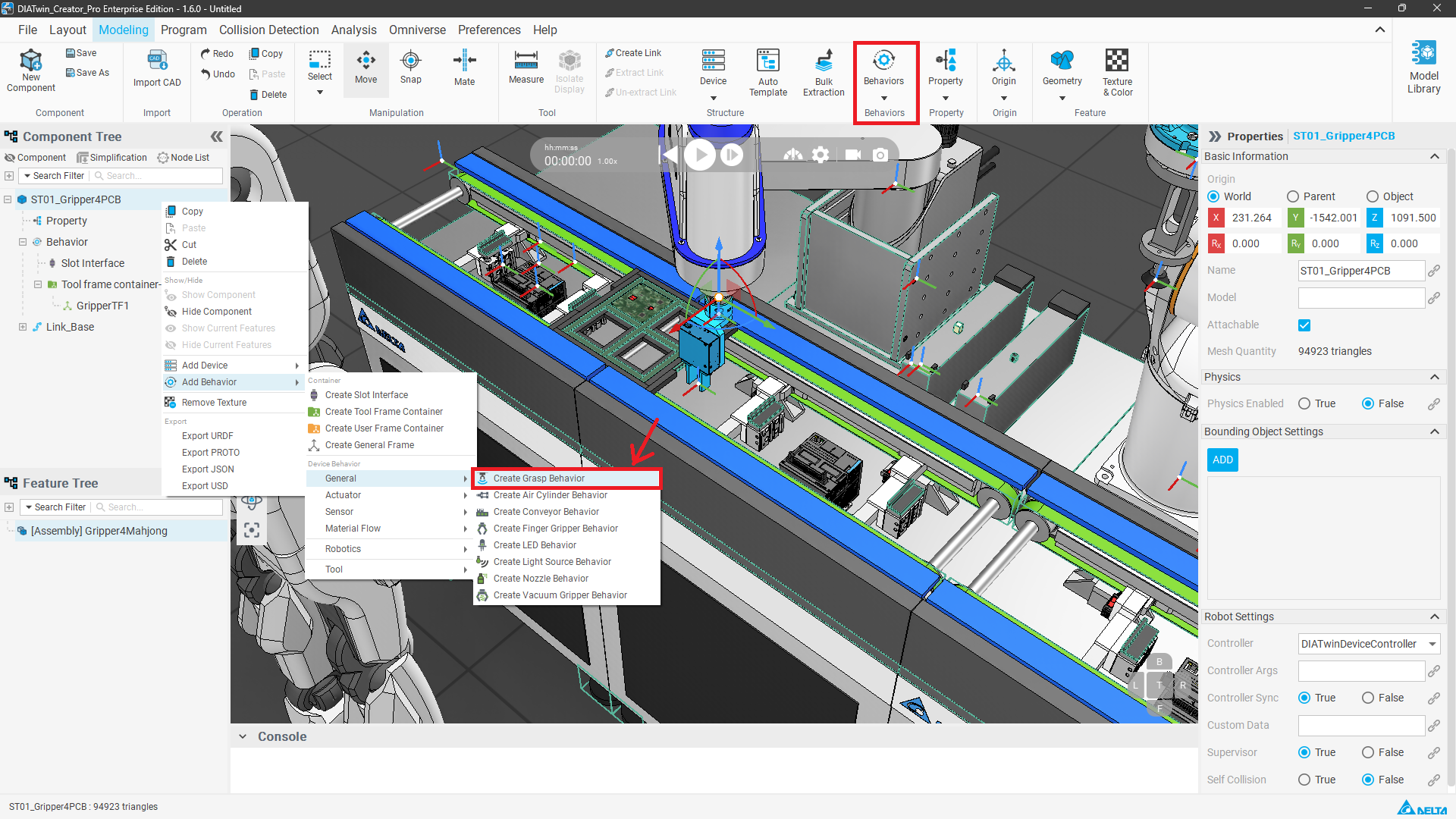
1. Add Grasp Behavior
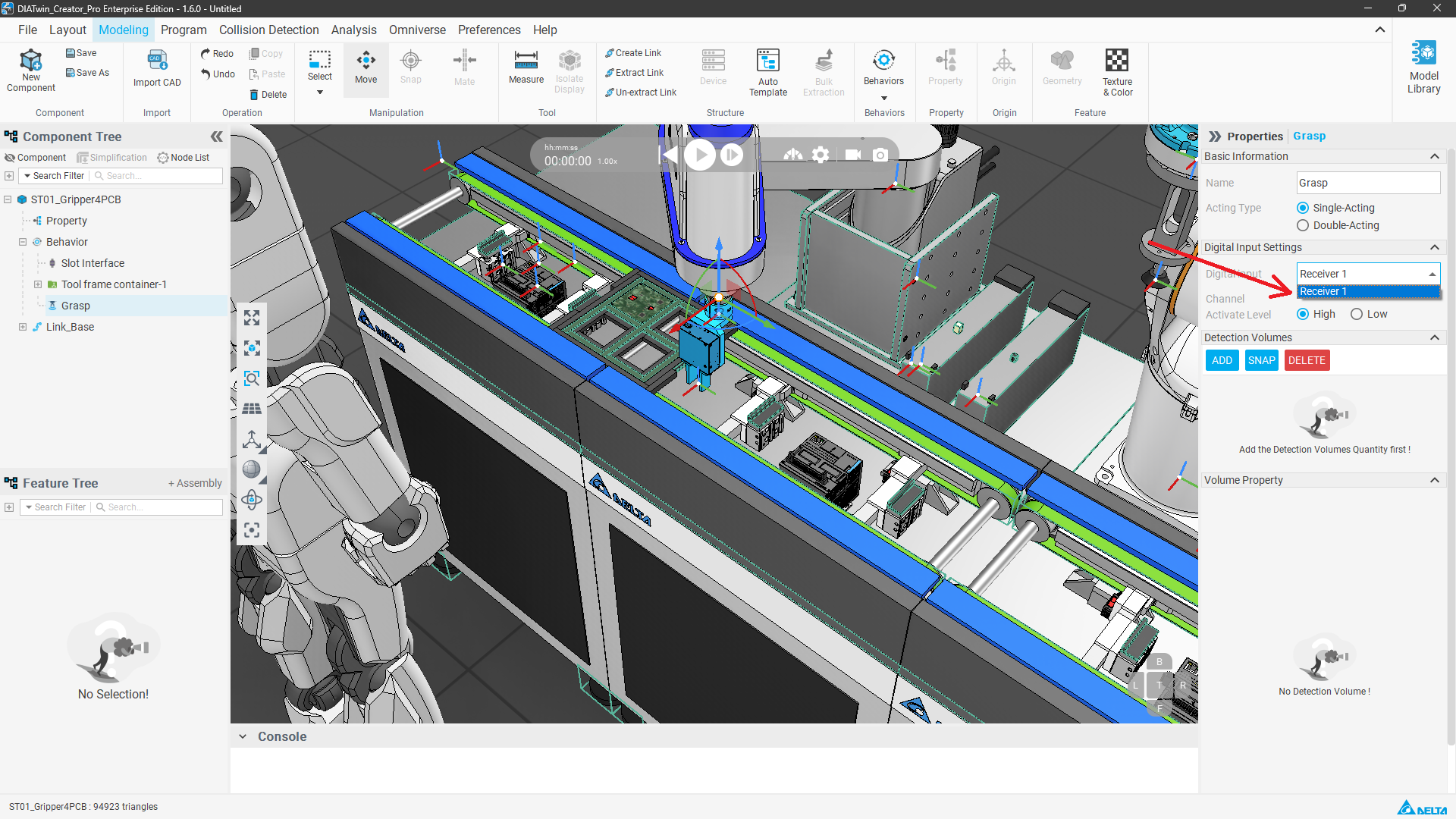
Select the target component (such as a suction nozzle or gripper), right-click and add Grasp Behavior.
Grasp Behavior
2. Select Receiver
Grasp Behavior
Receiver can be shared with the gripper.
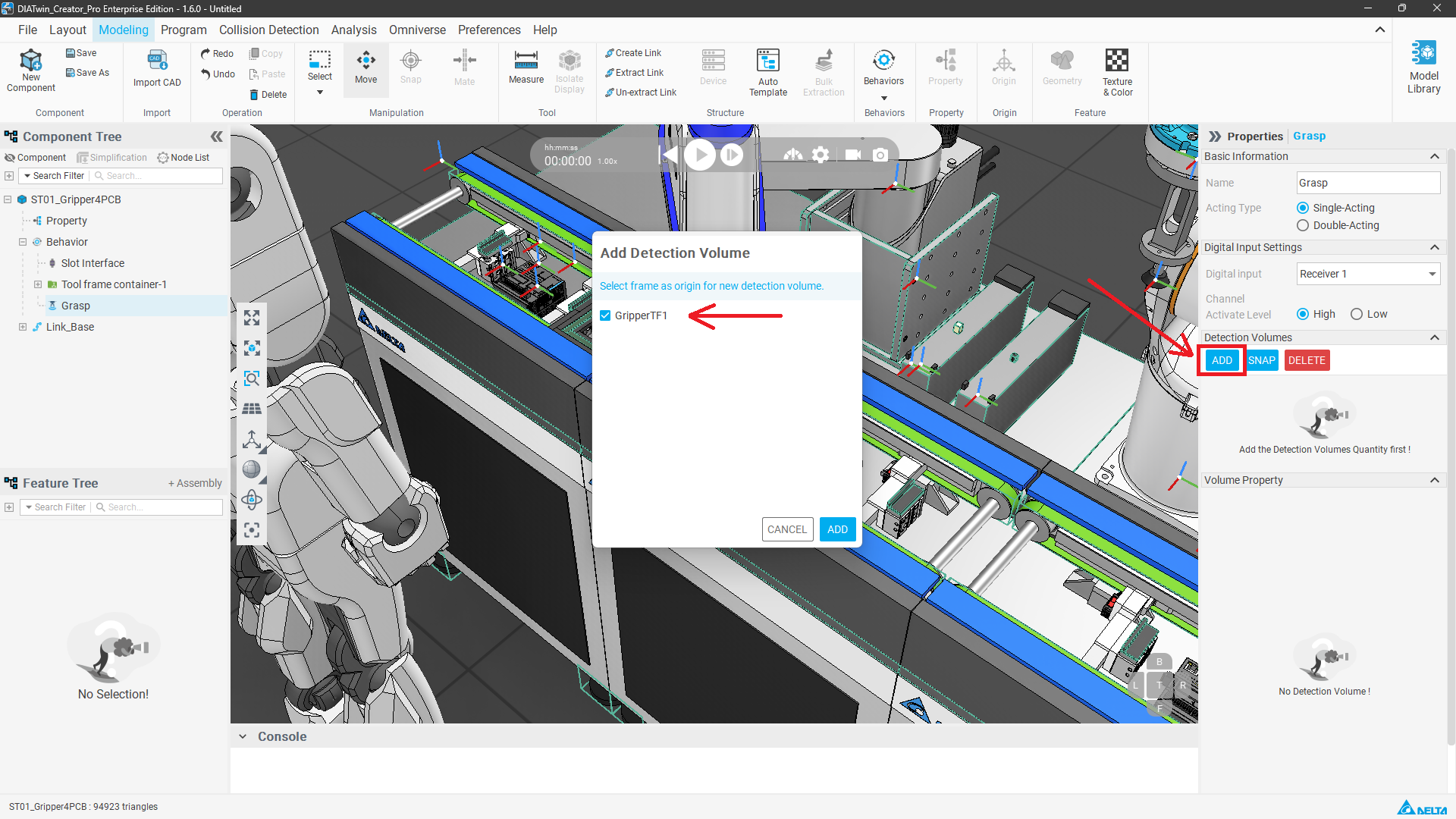
3. Add Detection Volumes
The detection volume is a geometric shape, and this geometric shape is established with the Tool Frame as the origin. Before adding, confirm whether there is a reference tool frame in the component. If not, you need to add GF/TF yourself. Detection Volumes default to a geometric Box. Detection Volumes
The system will detect if there are custom tool frames and provide them for users to select.
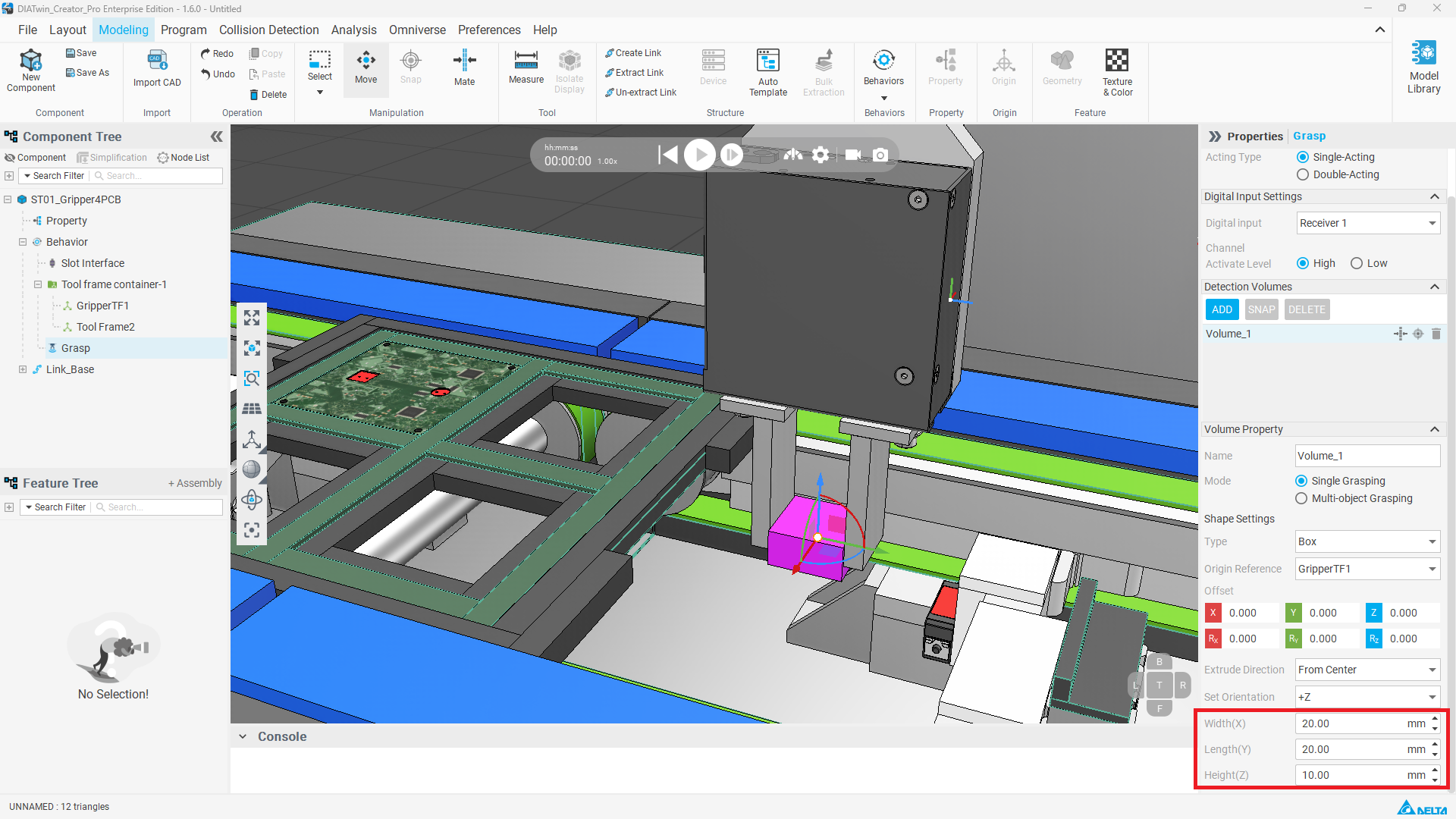
4. Modify Volume Position and Size
After creation, you can select to change it to a Cylinder in the properties panel. You can also perform displacement and rotation using the tool frame as the origin, or use Mate or Snap to attach and change its position. You can also directly modify Length, Width, and Height to change the size of the Volumes.
Grasp Behavior
Volumes are displayed as purple geometric shapes. If you still want to continuously see the Volumes after configuration, you can go to Preferences -> View -> check Show Detection Volumes to enable it.
5. Start Simulation
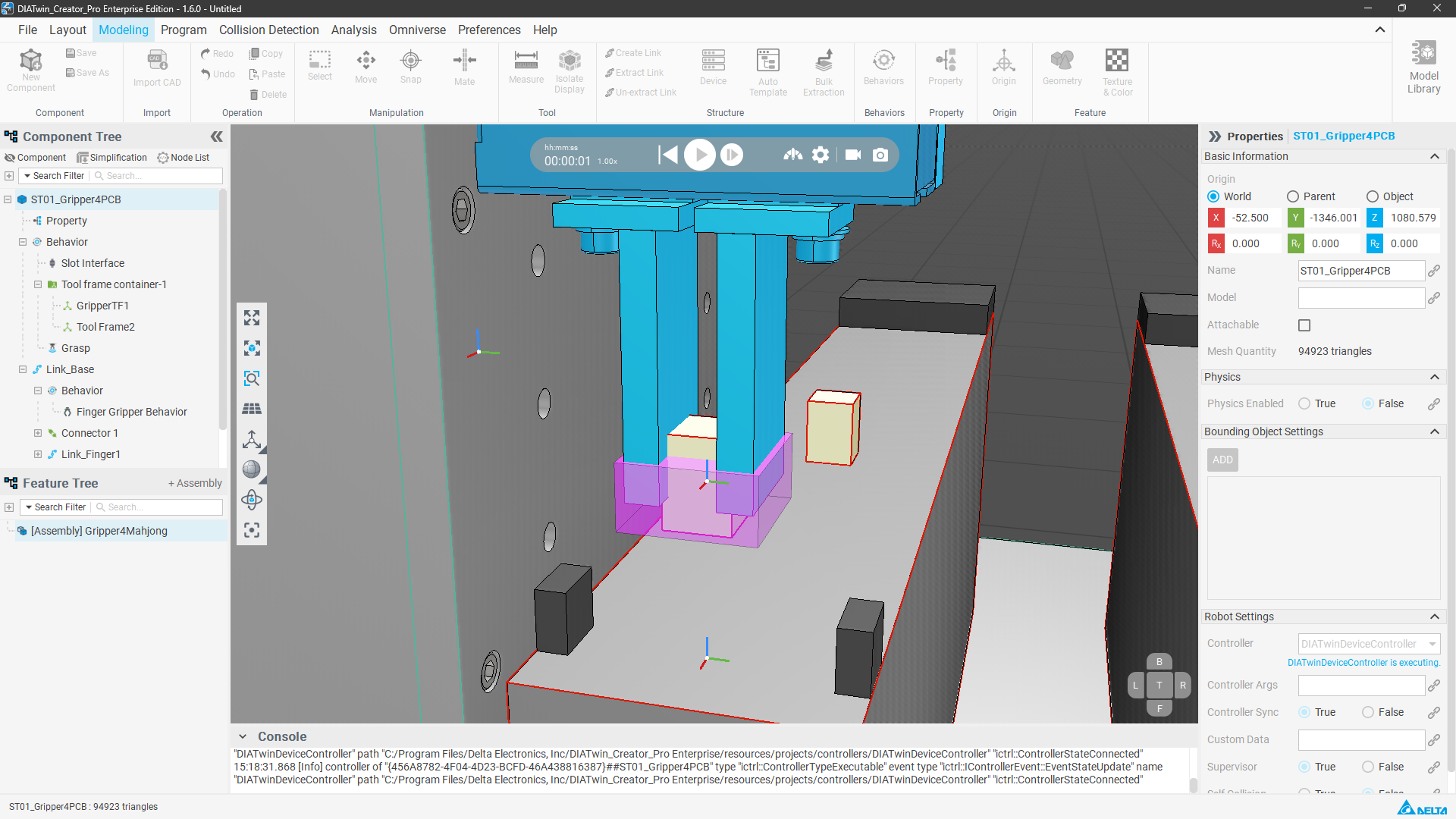
When running the simulation, the Grasp behavior will automatically detect objects with Attachable enabled within the Volumes. The instant the receiver receives a signal, the object will be attached to the gripper with the Grasp.
Grasp Behavior
The principle of Grasp is feature interference checking. Therefore, the object to be Attached and the Grasp object must have an overlapping interference volume to trigger.

The instant Grasp receives the signal again, it will detach the object. If the placed objects have mutual interference and also have Attachable enabled, the two will attach to each other.

Notes

  • Grasp Behavior cannot control the opening and closing of gripper links; it needs to be used with Finger Gripper Behavior to achieve the opening and closing action of the gripper links.