Previous topicNext topic
Help > v1.6 Release Notes >
Group Move & Single Move

Added Scene Tree Single Move / Group Move Mode

Feature Description

In the past, in Scene mode, when a user clicked on an assembled object in the Scene Tree, the right properties panel would only display the properties of the model's top layer. If the properties of lower-layer objects needed to be adjusted, the assembly had to be disassembled first, the object clicked and adjusted, and then reassembled, making the process somewhat tedious.

This update introduces the Single Move tool, allowing users to directly adjust the properties of lower-layer objects, perform copy/paste, or hide/delete without disassembling, effectively improving modeling efficiency.

Difference Description

  • Group Move:
    Treats all Attached or assembled objects in the same group as a whole for movement. Selecting any object in the group will move the entire group synchronously and maintain their relative positions. Dragger and Property are based primarily on the top-level Root component. Move / Snap / Mate all support this mode.
  • Single Move:
    Only moves the currently selected object and its child layers (Child). Dragger and Property will display the currently selected object. Move / Snap / Mate all support this mode.

Support for Each Mode

Available movement tools vary across different modes:

Mode Group Move Single Move
Scene V V
Modeling X V
Programming V X

Operation Method

1. Open Single Move Tool
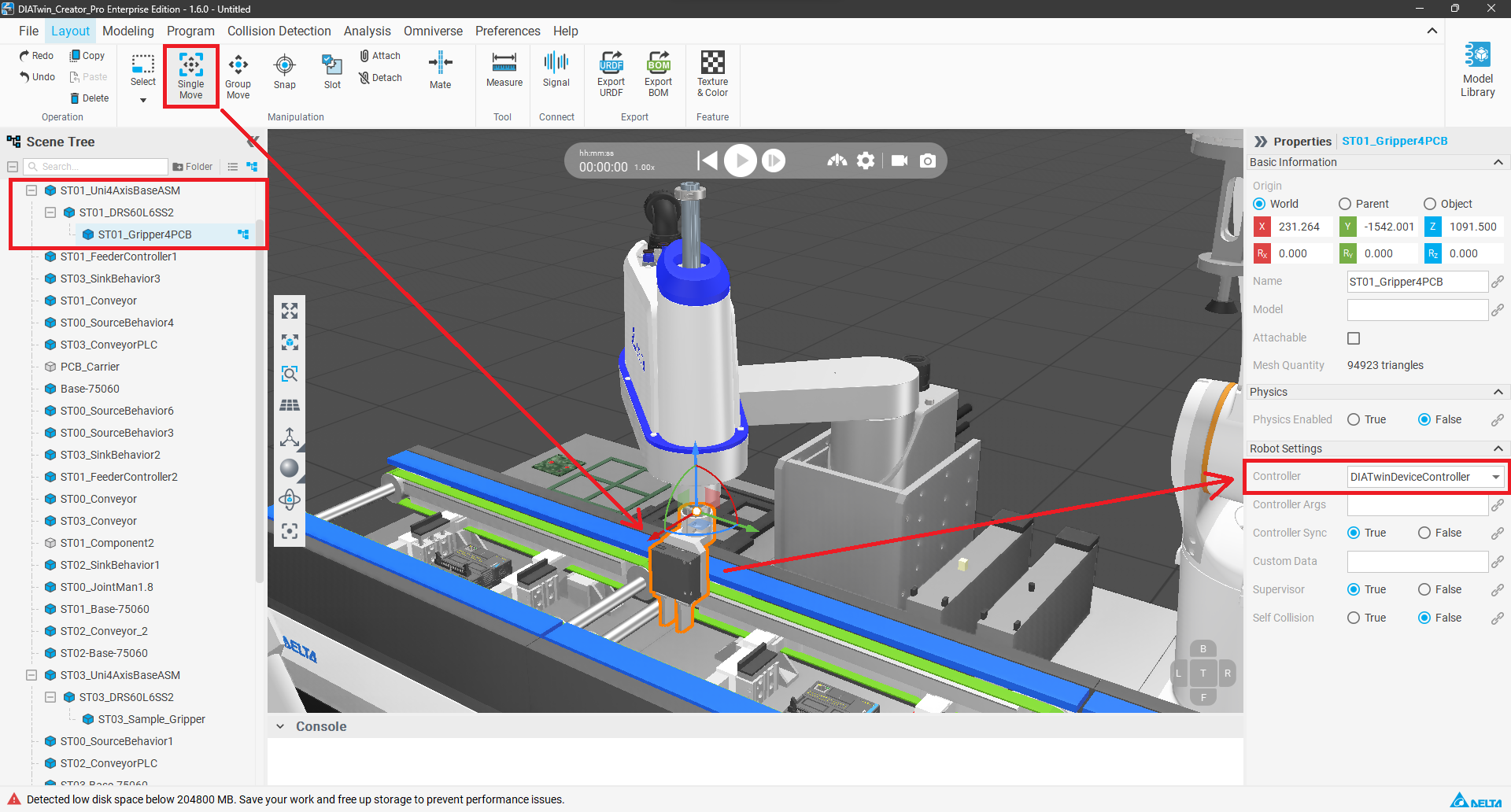
Click the Single Move tool on the toolbar in Scene mode.
2. Select Component
Click a component in the Scene Tree, or click a component directly in the 3D world. The selected component will be displayed with an orange outline.
3. Adjust Properties
You can adjust component properties in the right properties panel.
Single Move

Notes

  • Whether it's an assembled or Attached component, when using Single Move to drag one of the components into a folder, it will not dissolve the assembly or Attach relationship.
  • When using Single Move to drag the coordinate axis and move a component, it will move the coordinate position of the component's top layer, but the coordinate position of the assembly interface remains unchanged.
  • The Move tool name is only changed in Scene mode; the move names in Modeling and Programming modes remain unchanged.