Previous topicNext topic
Help > v1.6 Release Notes >
Omniverse Action Replay

Added Support for Component Action Recording to Support Omniverse Action Replay

Feature Description

NVIDIA Omniverse is a collection of libraries and microservices for developing physical AI applications (such as industrial digital twins and robot simulations). Leveraging NVIDIA's deep expertise in accelerated computing and AI, the Omniverse libraries allow software developers to integrate pre-built functionalities into their solutions.

To allow Omniverse users to more quickly apply existing action flows and perform high-quality rendering, version v1.6 introduces the Omniverse Converter functionality. It allows users to export DIATwin's action flows into OpenUSD format, containing parameters such as components, joint parameters, and motion sequences, and parses and plays the recorded action flows through Isaac Sim's extensions.

Operation Method: Isaac Sim Environment Setup

1. Open Isaac Sim
Download and install Isaac Sim from the official website (currently supports versions 4.5 and 5.1). Launch method: double-click isaac-sim.bat in the extracted folder.
2. Open Extension Manager (Extensions)
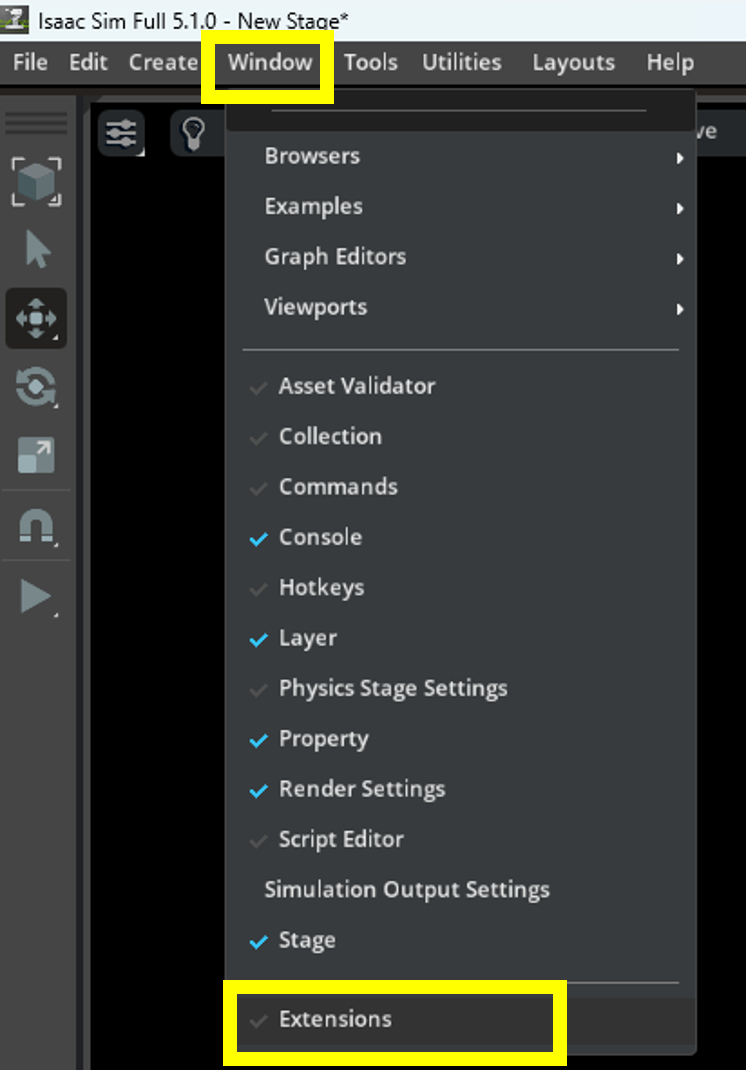
Go to the menu Window / Extensions to open the Extension Manager.
Open Extensions
3. Import Extension
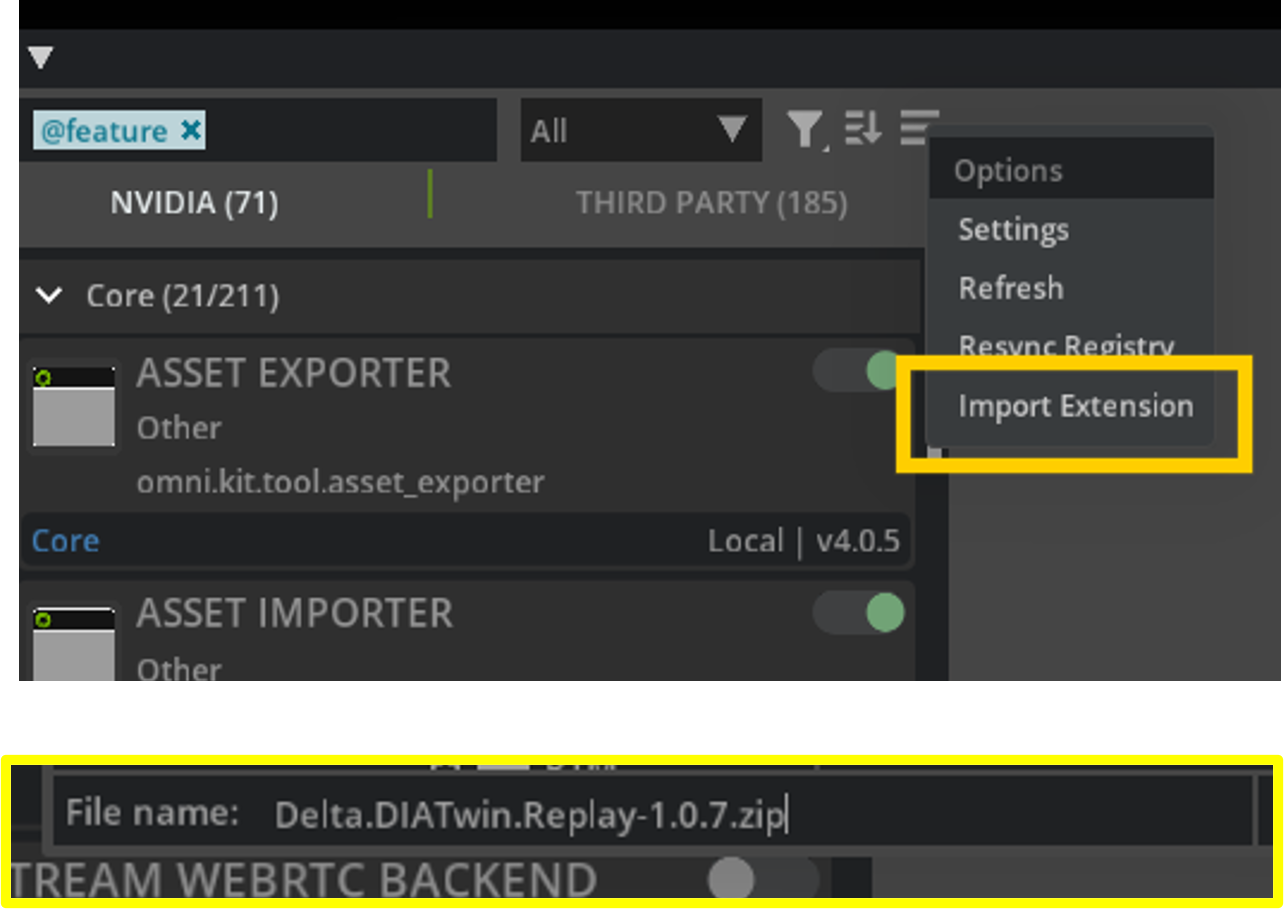
Click the Import Extension button, and select the archive path: Delta.DIATwin.Replay-1.0.7.zip
Import Extension
4. Search and Confirm Installation
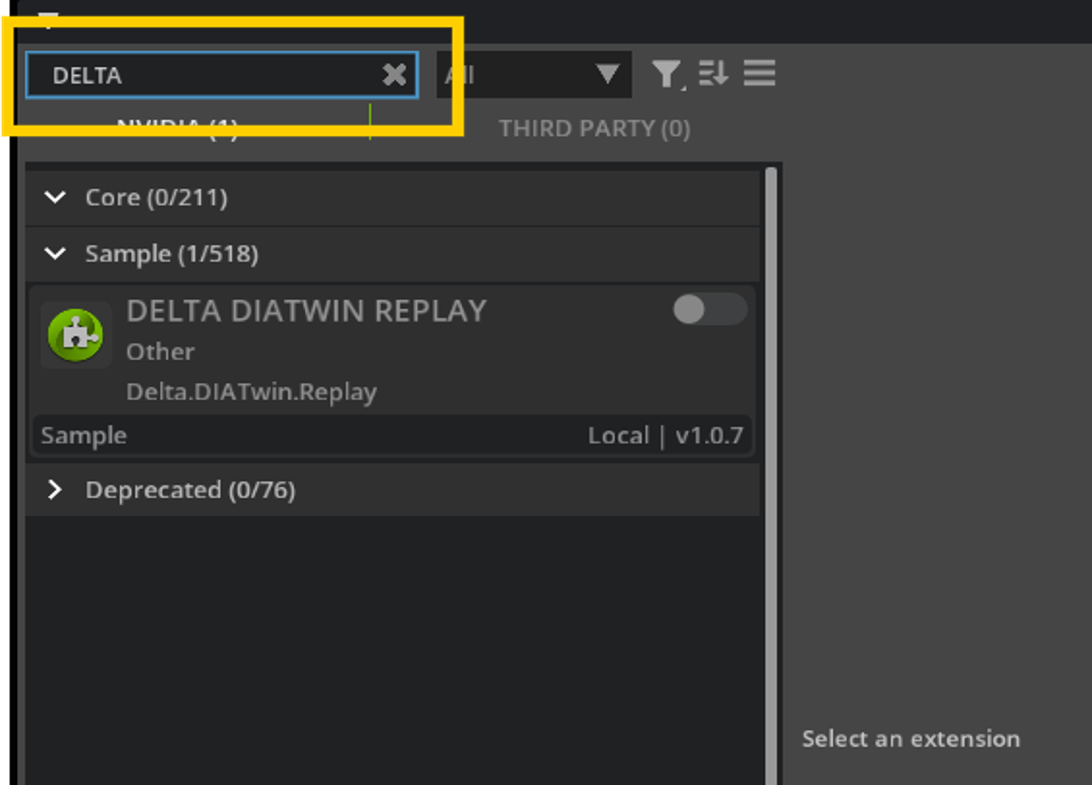
Enter "DELTA" in the search bar. After successful installation, DELTA DIATWIN REPLAY will appear in the list.
Search Extension
5. Enable Extension
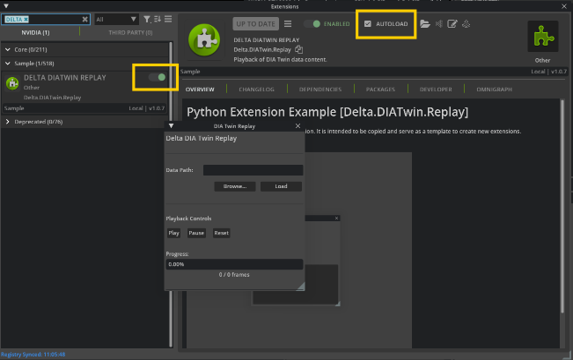
Click the Enable button, and the corresponding function window will pop up on the screen, ready for use.
Enable Extension

Operation Method: DIATwin Export Settings

6. Launch Omniverse Converter
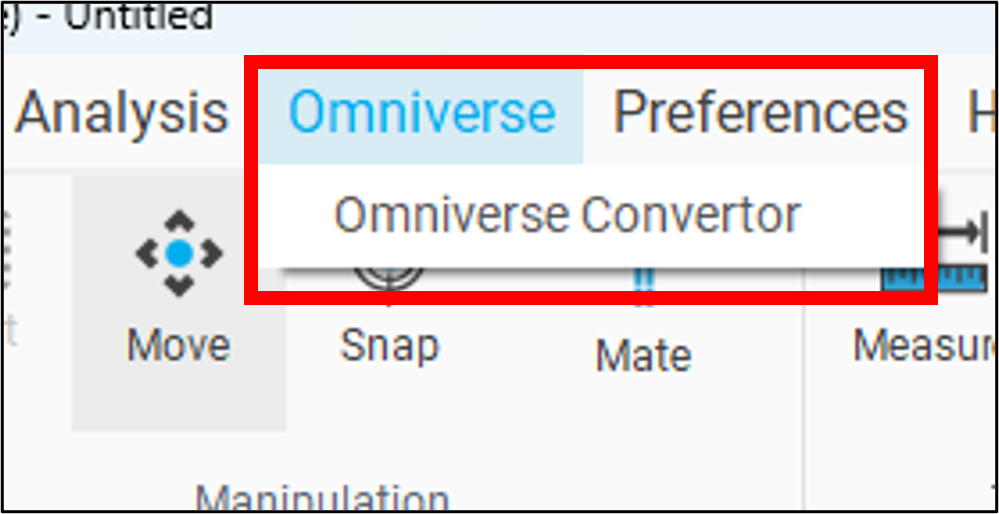
Select the menu Omniverse -> Omniverse Converter to open the settings window.
Open Converter
7. Create or Load Project Settings
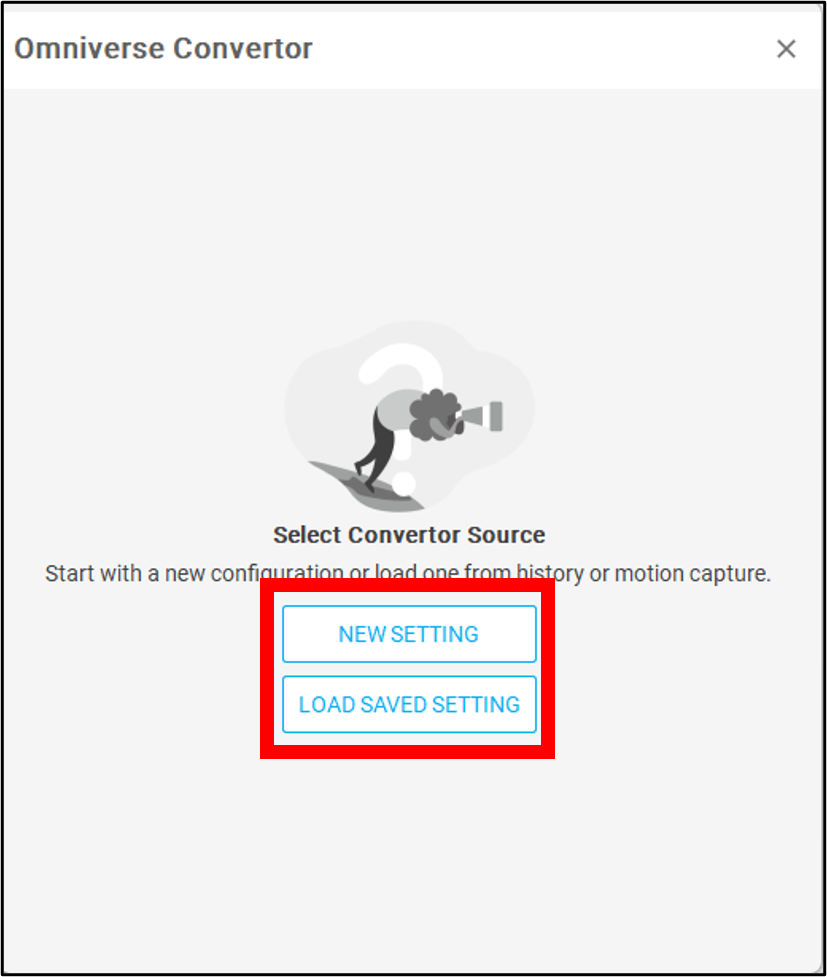
Select “NEW SETTING” or “LOAD SAVED SETTING”:
  • NEW SETTING: Create a new project, default is to record all components on the screen.
  • LOAD SAVED SETTING: Load previous project settings.
New Setting
8. Set Save Path and Recording Items
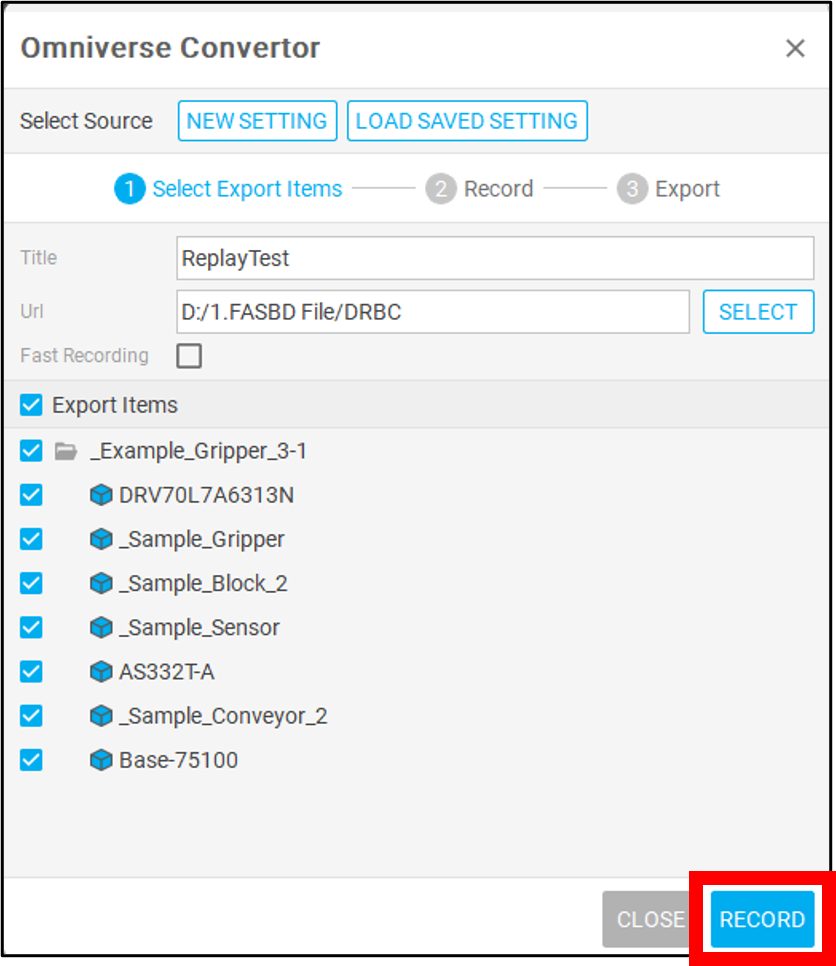
Set project save path and folder name:
  1. Click Select to choose the save path.
  2. You can check Fast Record to speed up simulation.
  3. Check the components you want to record in the Export Items list (at least one must be selected).
Export Items
9. Start Recording (RECORD)
Click the RECORD button to start simulation. The system will switch to the recording window and start collecting simulation data.
10. Pause or Stop Recording (PAUSE)
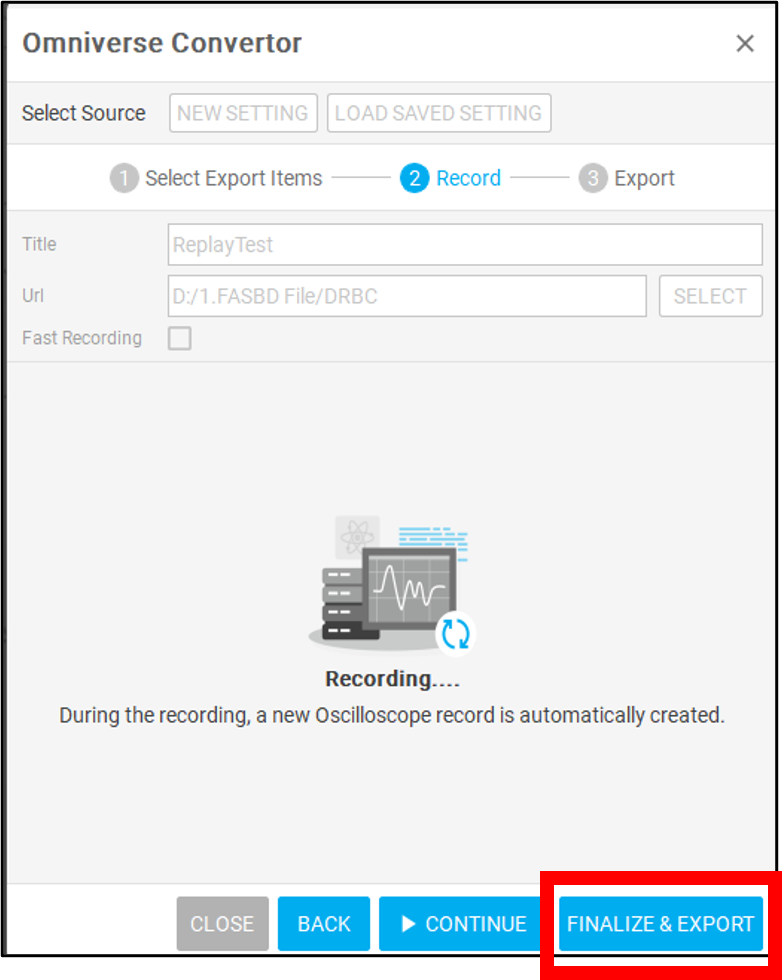
During the recording process, click PAUSE to pause recording:
  • Click CONTINUE to resume recording.
  • Click BACK to reset and return to the item selection stage.
11. Finalize and Export (FINALIZE & EXPORT)
Click FINALIZE & EXPORT. The system will save the USD and SCOPE files to the specified path.
Finalize and Export

Operation Method: Load Recorded Action Flow

12. Open DIATwin Replay Extension
Enable the installed Replay extension (refer to the previous steps for enabling extensions).
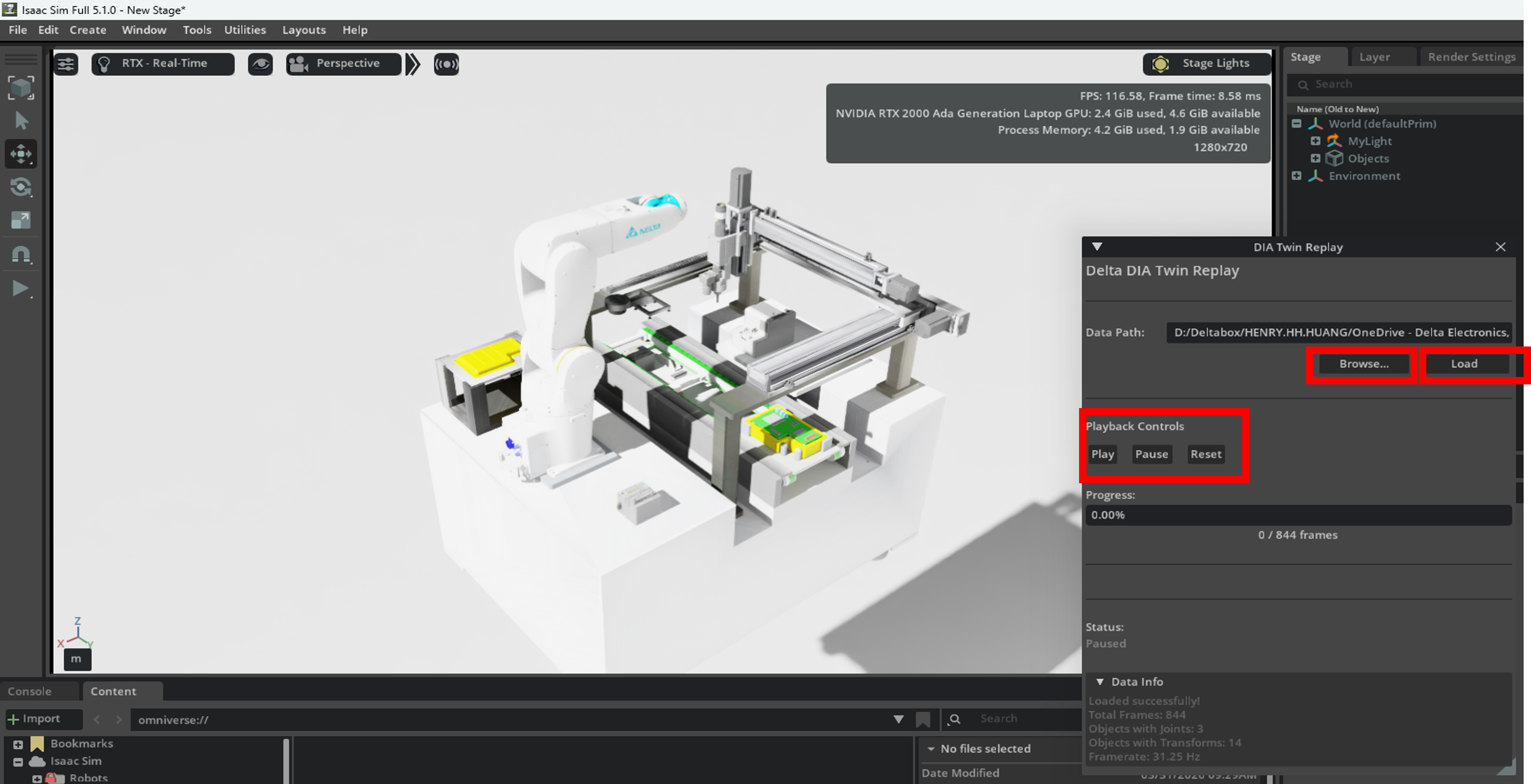
13. Click Browse
In the pop-up window, select the DIATwin replay project folder (the parent folder containing the USD and SCOPE files).
14. Click Load
Load USD and SCOPE files from the replay project folder.
15. Use Play, Pause, Reset to Control Replay
  • Play: Component starts executing the replay simulation.
  • Pause: Pause the current simulation flow.
  • Reset: Reset the simulation, components return to the initial position.
Play, Pause, Reset

Notes

  • The exported OpenUSD format is primarily used for action replay in Isaac Sim. Please ensure the version used is compatible (currently supports 4.5 and 5.1).
  • Since Omniverse currently only supports English and does not support special characters, please ensure the model complies with the following restrictions before conversion:
    • Component names must be in English and cannot contain special characters.
    • Link names must be in English and cannot contain special characters.
    • File paths and file names must be in English and cannot contain special characters.
  • Currently, Omniverse Converter can only capture component positions and linked joint positions during the simulation process.
  • Omniverse has not implemented source/sink behaviors, as components must be changed to components placed in the scene.
  • Visibility settings for hidden functionalities in DIATwin will not currently be converted to Omniverse, so they cannot be hidden there.
  • After installing the extension, a restart may be required for the simulation to work properly.
  • Once a folder is exported, its name cannot be changed.