Previous topicNext topic
Help > v1.6 Release Notes >
Import/Export OpenUSD

Added Import/Export OpenUSD Functionality

Feature Description

To enhance integration capabilities with Omniverse, v1.6 introduces import and export functionality for the OpenUSD format. Users can now export components directly from DIATwin in OpenUSD format, facilitating subsequent visualization, simulation, and collaboration in Omniverse. It also supports importing data from the OpenUSD format, allowing users to easily bring content from Omniverse into DIATwin Creator_Pro for editing and simulation.
Open USD


Supported Import Formats

Supported OpenUSD-related formats include:
  1. USD ( Universal Scene Description ):
    A high-performance 3D scene description format developed by Pixar, supporting complex scene structures, materials, and animation data, widely used in visual effects and simulation fields.
  2. USDA ( Universal Scene Description ASCII ):
    The ASCII version of USD, using a plain text format to describe scene data, making it easy to read and edit.
  3. USDC ( Universal Scene Description Crate ):
    The binary version of USD, using an efficient binary format to store scene data, suitable for large-scale scenes and high-performance requirements.
  4. USDZ ( Universal Scene Description Zip ):
    The compressed version of USD, packaging USD files and related resources into a ZIP file for easy transmission and sharing.

Operation Method

1. Import OpenUSD
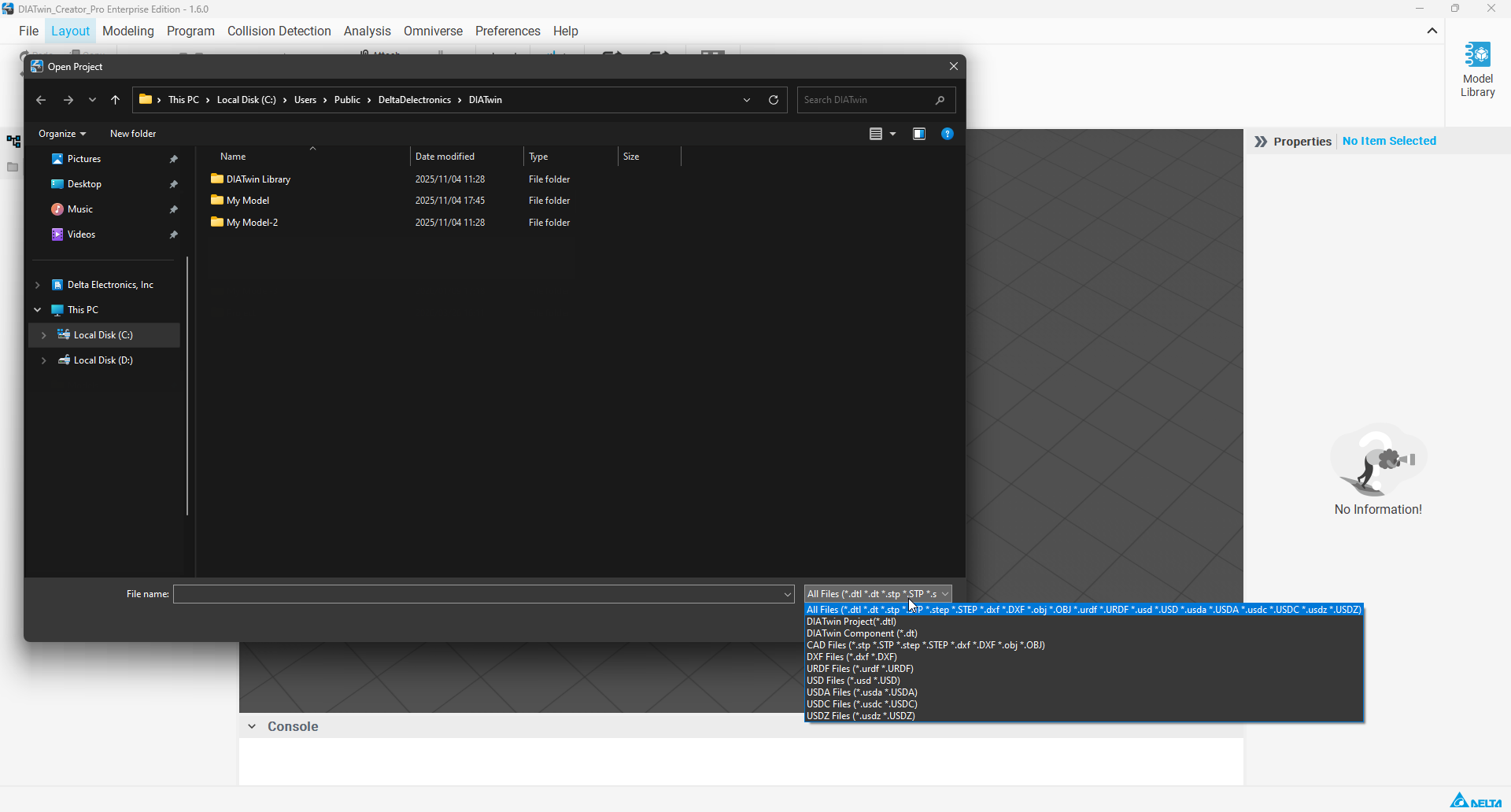
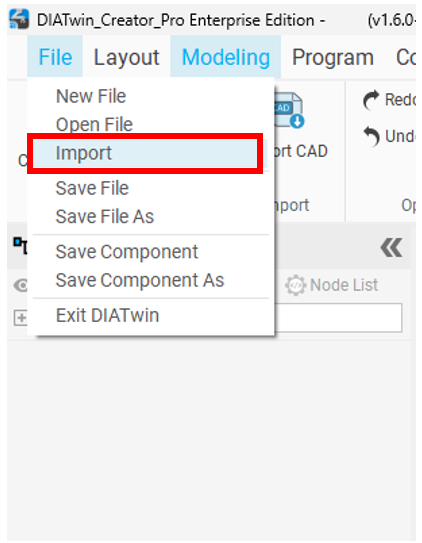
In the File menu, select "Import". The default file format is set to All Files. Users can directly select any OpenUSD file. The system will automatically parse the file content and load its features, joint parameters, and hierarchical relationships into the current scene. If the folder contains files in various formats, users can also switch from All Files to a specific USD format for filtering.
Import USD
2. Export OpenUSD
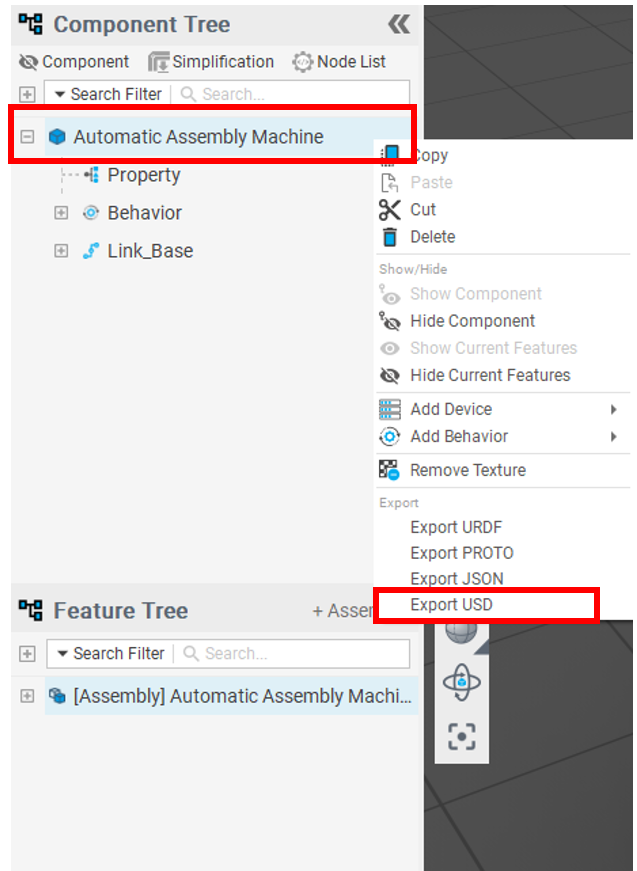
Select the component you want to export in the Component Tree under Model mode. Right-click on the parent node of the component, and select Export USD from the context menu. The system will convert all features, materials, and joint attribute data of this component in the current 3D world into OpenUSD format and save it to the specified location.
Export USD

Notes

  • Lines cannot be converted to USD format (e.g., dxf, gerber).
  • Since Omniverse currently only supports English and does not support special characters, please ensure the model complies with the following restrictions before exporting:
    • Component names must be in English and cannot contain special characters.
    • Link names must be in English and cannot contain special characters.
    • File paths and file names must be in English and cannot contain special characters.