

Component Tessellation Quality
Although DIATwin supports the import of STEP files, it appears that the imported files do not display a mesh. However, in reality, the model exists as a triangular mesh in the 3D world, and the number of triangular meshes affects the rendering speed of the model. The better the computer, the faster the rendering speed. Conversely, if you feel that your computer hardware is not performing well when running large and complex models in DIATwin, you can try adjusting the number of meshes to make the software run more smoothly.
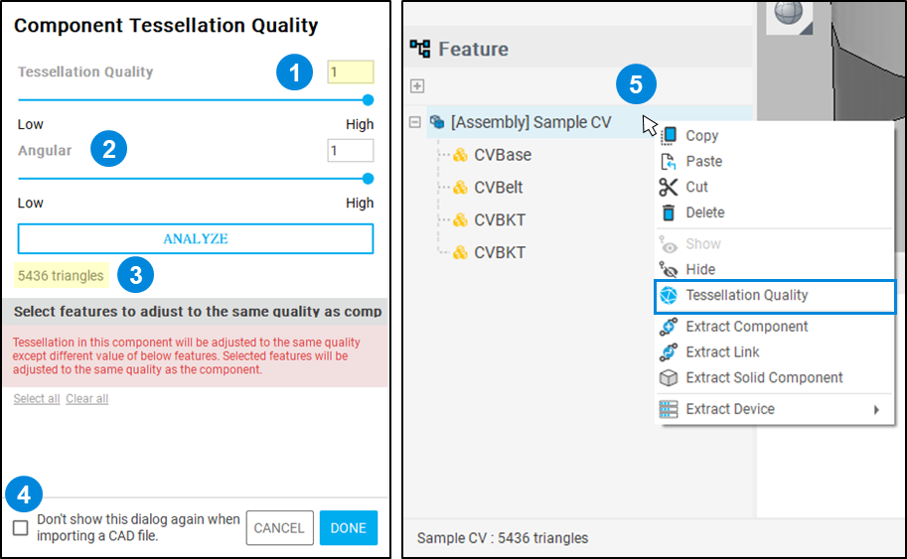
| 1 | Input a mesh Tessellation quality from 0.1 to 1 or adjust the number of meshes by dragging. |
| 2 | When a curve is divided into several small segments, the Angular value can be adjusted to change the angle between the segments, but this is only effective for a few shapes. |
| 3 | After pressing the Analyze button, you can see the current changes in the number of triangular meshes. |
| 4 | The software is set to automatically display this interface for adjusting the mesh model quality after importing a model. If checked, this dialog box will not appear again when importing files in the future. |
| 5 | If the component tessellation quality menu does not appear when importing a file, users can right-click on the selected model in the feature tree to access the menu. |