

The basic operations of the mouse in the 3D world are as follows:

|
Zoom In |
Scrolling the wheel up will zoom in the view. |

|
Zoom Out |
Scrolling the wheel down will zoom out the view. |

|
Pan |
Pressing and holding can pan the view. |

|
Rotate |
Pressing and holding the wheel while dragging the mouse will rotate the view. |

|
Select Feature |
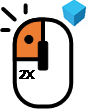
Clicking the left mouse button will select the desired feature node. The feature node will be highlighted in yellow. |
|
Select Link |
Double-clicking the left mouse button will select the desired link node. The link component will be highlighted in blue. |

|
Menu |
Right-clicking will bring up a menu. |
The following introduces how to move and control components through the Dragger's coordinate axes.
|
Move Along Each Axis |
|||
|
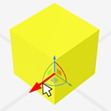
Press and hold the X-axis arrow and drag |
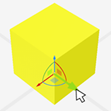
Press and hold the Y-axis arrow and drag |
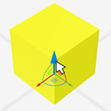
Press and hold the Z-axis arrow and drag |
|
 |
 |
 |
|
|
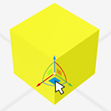
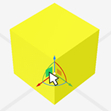
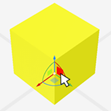
Move Along Each Plane |
|||
|
Move along the XY plane |
Move along the XZ plane |
Move along the YZ plane |
|
 |
 |
 |
|
|
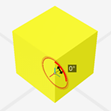
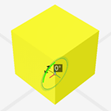
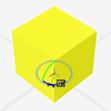
Rotate Along Each Axis |
|||
|
Rotate along the X-axis |
Rotate along the Y-axis |
Rotate along the Z-axis |
|
 |
 |
 |
|
|
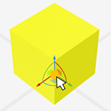
Free Movement |
|||
|
Press and hold the origin to move freely. |
|||
|
The Dragger represents each axis with different colors: ← X-axis - Red → Y-axis - Green ↑ Z-axis - Blue |
||